
Using my FRITZ!Box 6660 as a Modem
 Yannick
I recently switched my home router from a FRITZ!Box 6660 to a TP-Link ER7412-M2,
because I wanted more control over my Network, and Tammo and I
had already used Omada at work and liked the price to performance ratio.
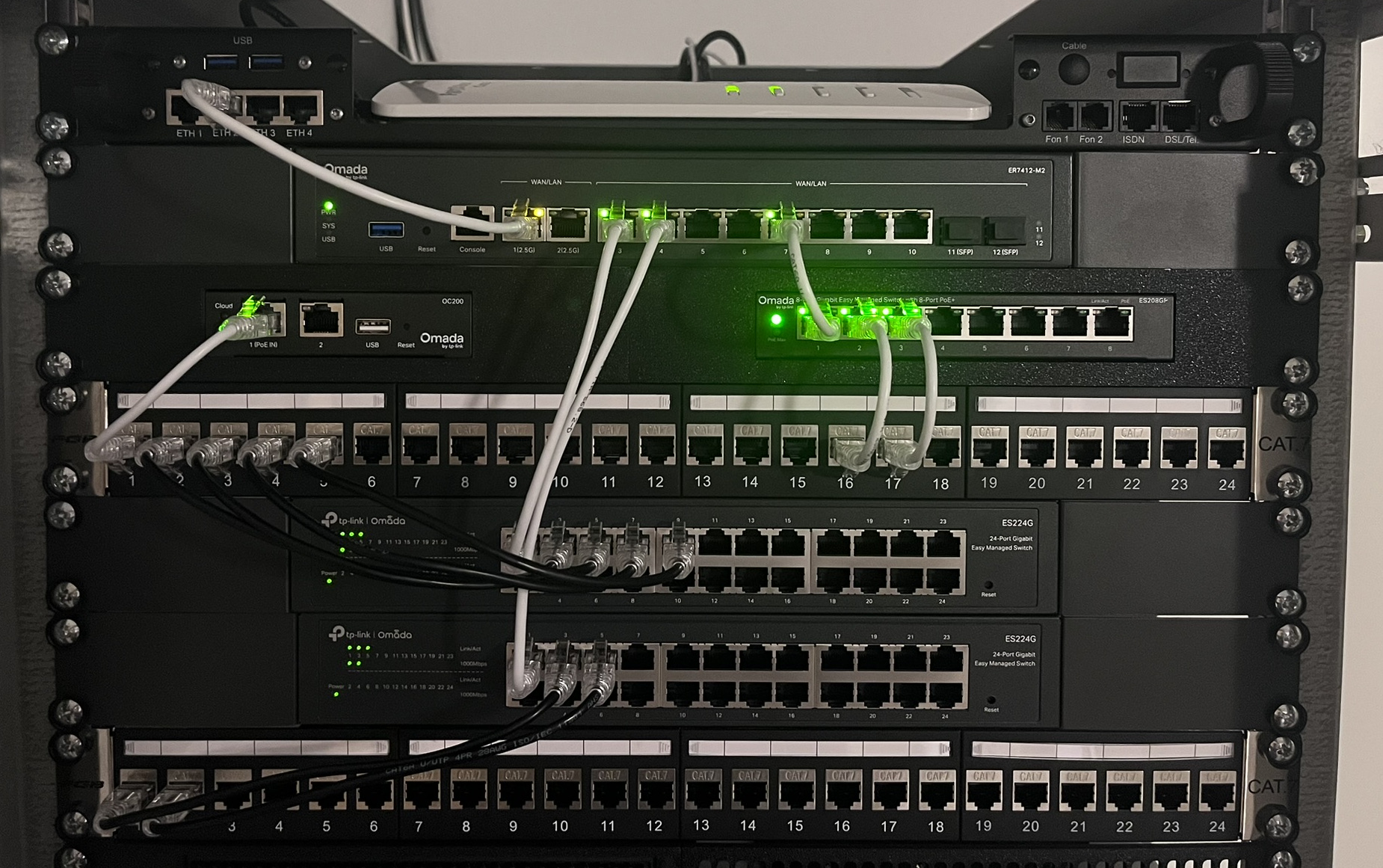
As Vodafone only supports a few "whitelisted" routers for cable connections, I had to keep the FRITZ!Box as a modem,
which wouldn't have been a problem, if AVM had provided a bridge/modem mode in the GUI.
I had previously seen a few guides on the Internet on how to turn a FRITZ!Box into a bridge,
but I had to combine a few of them to get it working on FRITZ!OS 8.25.
#Goal
My goal was to have the FRITZ!Box act as a pure DOCSIS modem, with my Omada router handling routing, NAT, and firewall.
I wanted to avoid double NAT, in order to not have issues with port forwarding, VPNs, etc.
I also saw some other solutions,
but I wanted a real bridge where the FRITZ!Box just terminates DOCSIS and passes the WAN through one Ethernet port.
#Solution
This is an unofficial configuration change.
AVM does not officially support using the FRITZ!Box 6660 as a modem/bridge, so try this at your own risk.
The solution basically revolves around the FRITZ!Box config export/import mechanism,
originally designed for just backing up and restoring settings.
You can download the configuration, edit a few hidden values, and then import the updated config, exposing a bridge functionality, that otherwise is not available in the GUI.
#Edit
You should first export and save an unmodified copy of your current configuration.
For that you need to open the web interface under System -> Backup -> Save,
then save the file somewhere safe on your computer.
Create a copy of the exported file and open it in a plain text editor.
You only need to edit some values in the ar7.cfg section of the export:
ar7cfg {
    erouter_enabled = no;
}
webui {
    lanbridges_gui_hidden = no;
    expertmode = yes;
}
dslifaces "internet" { enabled = no; }
dslifaces "voip"     { enabled = no; }
erouter_enabled = no makes the box stop being the DOCSIS e-router,
lanbridges_gui_hidden = no unhides the "Bridge Ports" area,
and the dslifaces entries disable the FRITZ!Box's own Internet and VoIP interfaces,
so it no longer establishes its own Internet connection.
The expertmode = yes was the additional flag I needed on my FRITZ!Box 6660 (FRITZ!OS 8.25).
Without it, the "Bridge Ports" section did not appear for me.
The export ends with a CRC-32 trailer.
If you don't recompute it, the box rejects the import.
You can do that using Michael Engelke's JS tool.
(I verified the same algorithm offline with my own fbxsum.py, but the browser tool does the job.)
#Import
Go to System -> Backup -> Restore and select the modified file.
Your FRITZ!Box will reboot and apply the new settings.
After the reboot the box shows "Cable disconnected".
It stays reachable at 192.168.178.1.
You should now be able to see the new "Bridge Ports" tab in the web interface under Internet -> Account Information.
On the FRITZ!Box 6660 Cable only LAN2-LAN5 are selectable. The 2.5G port (LAN1) is not.
There is a way to use it anyway (ethport_1 QoS injection),
but my cable connection is 600 Mbit/s, so I just used LAN2.
#Verify
Connect the FRITZ!Box bridge port to your router's WAN.
Your router should now show your public IP as its WAN IP :)